CygNet DDS Check Utility
The DDS Check utility (DdsCheck.exe) performs basic validity checking and repairs for common Device Definition Service (DDS) record inconsistencies. You can check the consistency of records for devices, data groups, and elements by clicking Perform Check. If a problem, such as a duplicate record, is found, you can correct it by clicking Perform Fix. You can run this utility while the CygNet service is running.
CygNet DDS Check Utility is stored in the CygNet\Utilities directory (DdsCheck.exe) on the host server. To start the utility, use Windows Explorer to browse to the directory and double-click the program icon.
Note: You can also set up this utility to be installed and launched (started) via CygNet Client Installer so that the application can be version managed. See Version Management for instructions on how to do this.
|
CygNet DDS Check Utility |
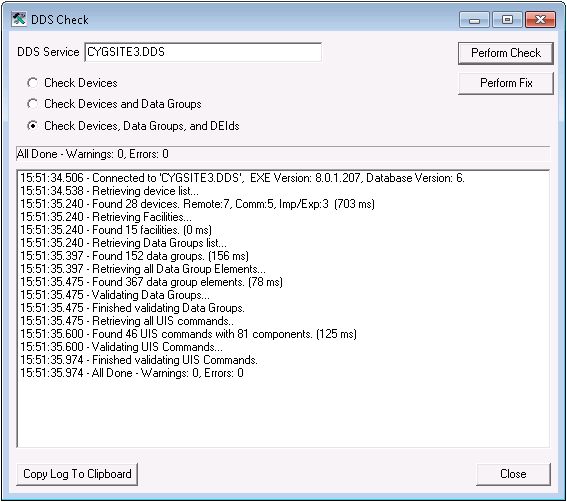
To Perform a DDS Check
- Type the name of your DDS Service.
- Select the validation action that you want to perform. Options include:
- Check Devices
- Check Devices and Data Groups
- Check Devices, Data Groups, and DEIDs
- Click Perform Check. After the utility has completed DDS validation, a list of validation actions and an All Done message will appear in the status bar.
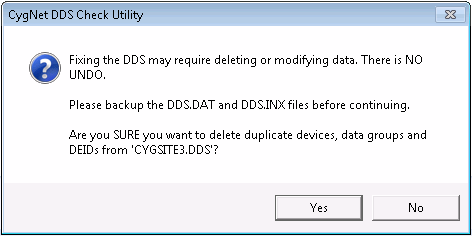
- If errors are found, be sure that you have a backup of the .dat file and the .inx file before trying to fix the DDS. Perform Fix permanently deletes information in the database. When ready, click Perform Fix. A message appears warning you that there is NO "undo" for deleting invalid or duplicate records for devices and data groups. To continue, click Yes.
Note: If you would like more information about the types of errors that CygNet DDS Check Utility has detected, contact CygNet Support before performing the fix.
|
CygNet DDS Check Utility - Confirmation Message |
- Click Copy Log to Clipboard if you want to save the message log.
- Click Close to exit the utility.


